 For Individuals
 Data Recovery
 File Repair
 Data Erasure
  For Business
 Email Repair
 Email Converter
 Email Migration
 File & Database Repair
  Toolkit
 Forensic
 Lab Services
 Our Partners
 About
About Company
 Leadership
  Media Coverage
 Press Releases
 Career
  Resources
 Case Studies
 Blogs
Blogs  Articles
  Videos
  Support
 Contact us

Here’s a clear step-by-step guide for recovering an accidentally erased external drive on Mac with Stellar Data Recovery
Why Recovery is Possible
When you erase an external drive on Mac (via Disk Utility or Finder), macOS usually only removes the file system and directory structure. The actual data often remains on the drive until overwritten. A professional recovery tool like Stellar Data Recovery for Mac can scan the drive at a deeper level and rebuild recoverable files.
---
Steps to Recover Data from an Erased External Drive on Mac
1. Stop Using the Drive Immediately
- Do not copy new files or format the drive again.
- Any new data can overwrite the erased data and make recovery difficult.
2. Install Stellar Data Recovery for Mac
- Download and install Stellar Data Recovery Professional for Mac on your Mac.
- Make sure you install it on your Mac’s internal drive, not on the erased external drive.
3. Connect the External Drive
- Attach the erased external drive to your Mac.
- Ensure it is detected in Finder or Disk Utility (even if empty/unformatted).
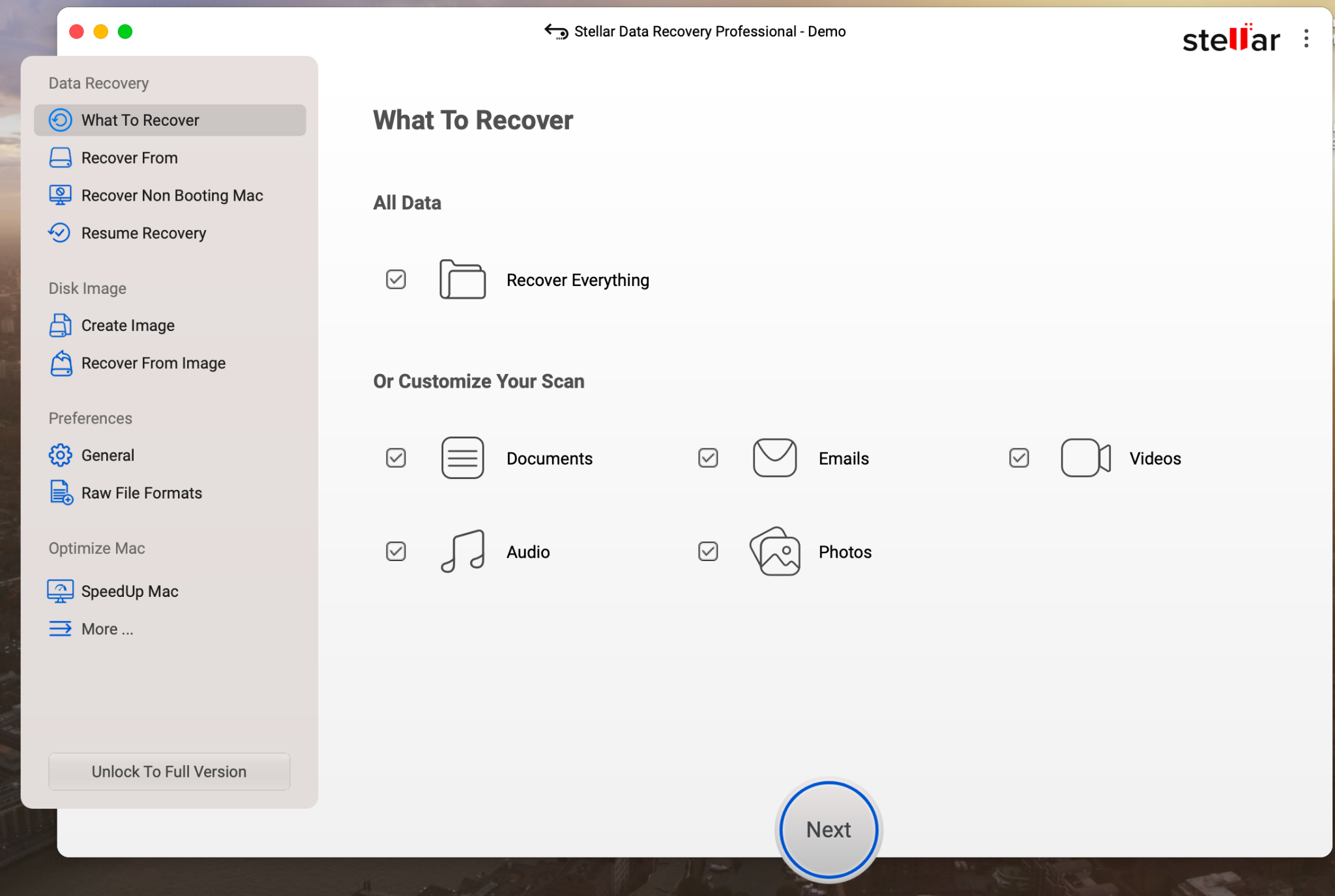
4. Launch Stellar Data Recovery
- Open the Stellar application.
- On the home screen, choose the type of data you want to recover:
5. Select the Erased External Drive
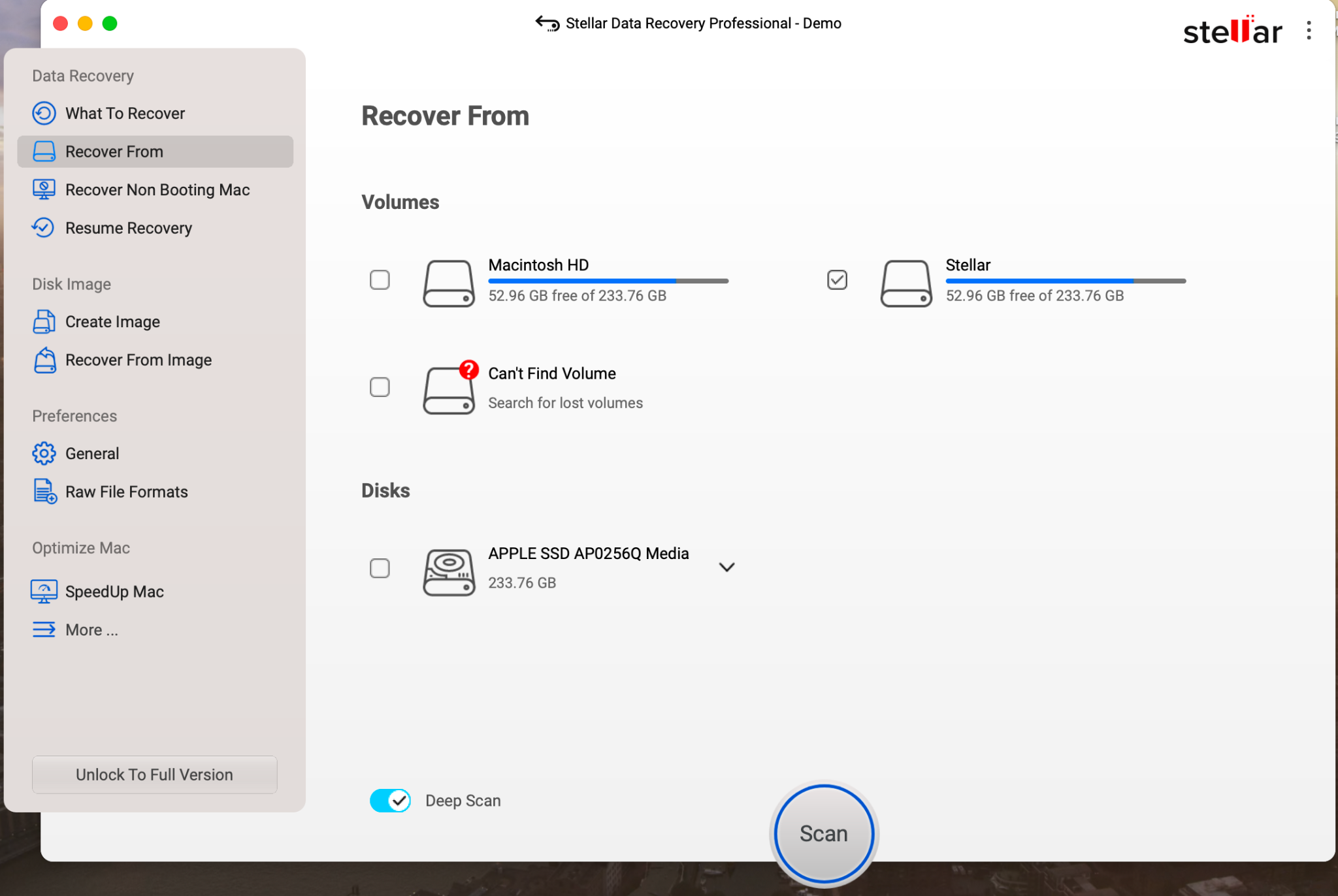
- From the drive list, select your erased external drive.
- Toggle Deep Scan (recommended for erased/formatted drives).
6. Start the Scan
- Click Scan → the software will thoroughly scan the erased drive.
- Deep Scan may take time depending on the drive size.
7. Preview Recoverable Files
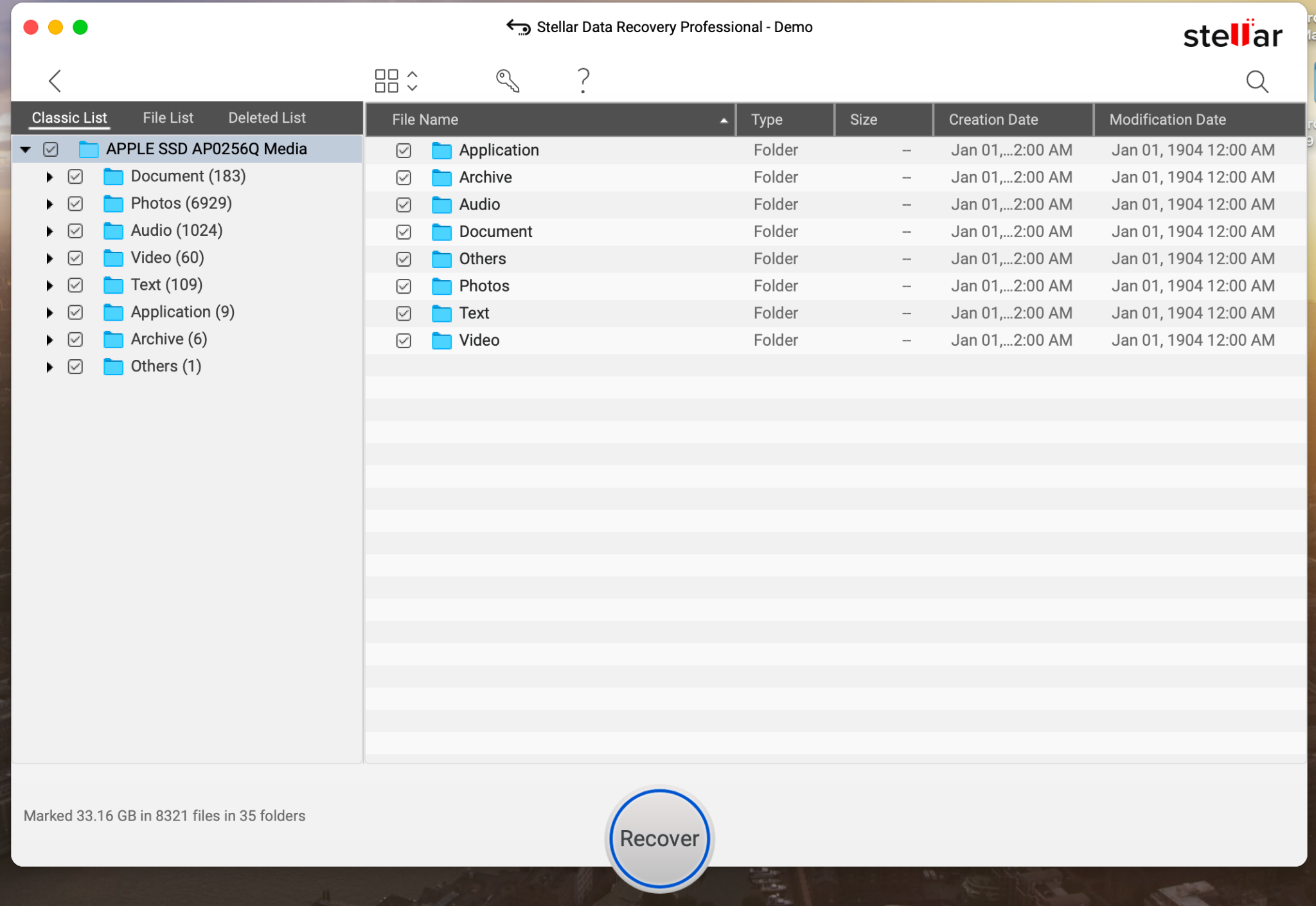
- After scanning, Stellar shows all recoverable files in a tree view, file type view, and deleted list.
- Use the preview feature to check file quality before recovery.
8. Recover & Save Data
- Select the files/folders you want to recover.
- Click Recover → choose a safe location on a different drive (not the erased one).
Important Notes
Free Trial Limitation: The free trial lets you scan and preview recoverable data. To save files, you’ll need to purchase and activation key.
If the external drive is physically damaged (clicking sounds, not detected), Stellar software alone won’t work—you’ll need Stellar Data Recovery Services.
By following these steps, you can restore accidentally erased files from your external drive on Mac using Stellar Data Recovery.






