 For Individuals
 Data Recovery
 File Repair
 Data Erasure
  For Business
 Email Repair
 Email Converter
 Email Migration
 File & Database Repair
  Toolkit
 Forensic
 Lab Services
 Our Partners
 About
About Company
 Leadership
  Media Coverage
 Press Releases
 Career
  Resources
 Case Studies
 Blogs
Blogs  Articles
  Videos
  Support
 Contact us

If your Android device is not being recognized by Stellar Data Recovery for Android tool, disconnect it and follow the below provided steps.
There are a few steps you need to complete before reconnecting your Android device.
- First, ensure USB debugging is already enabled on your Android device. If not, then enable USB debugging.
- Once you have enabled USB debugging on your Android device, connect your device to the Windows computer and then run Stellar Data Recovery for Android.
- The software will now try to establish connection with the Android device.
- Now you will see a pop-up message - “Allow USB Debugging?” on your Android device.
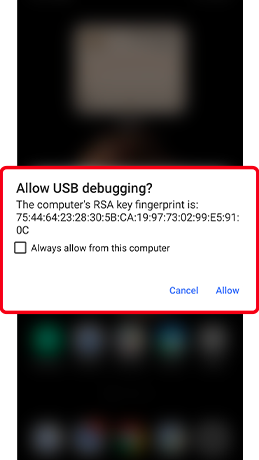
- Next, you need to check the box beside “Always allow from this computer” and then tap on Allow.
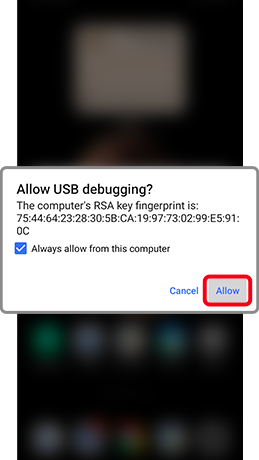
- If your Android device does not show these pop-ups or does not respond even after enabling these steps, quickly disconnect it and reconnect again to the computer. This will work.
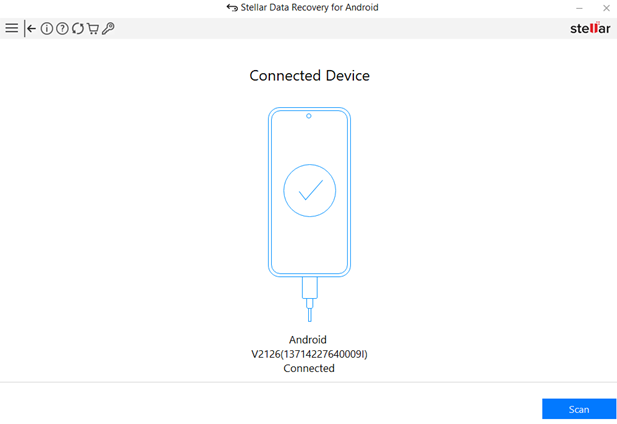
- Once your Android device is detected and successfully connected to the Stellar Data Recovery for Android tool, you need to allow the required permission to start with the scanning process.
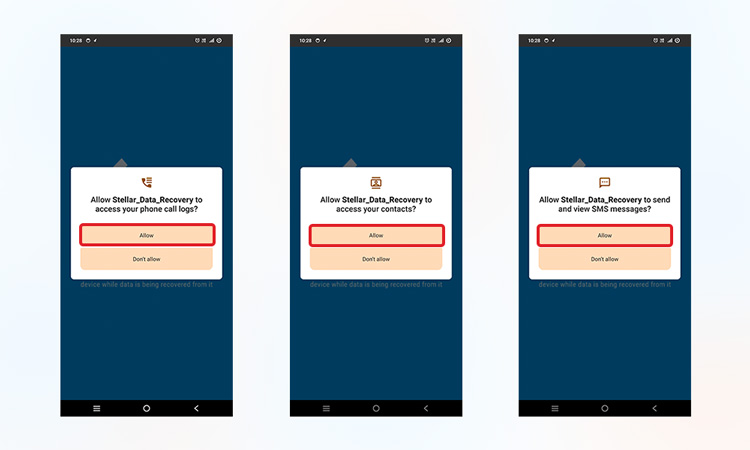
Note: If you do not see the authorization pop-ups on your connected Android device. Then click Show Again on the Stellar software interface and wait for some time to view the authorization pop-up message.
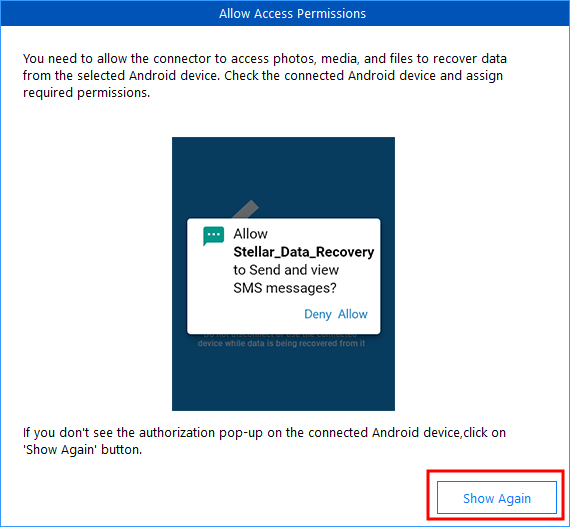
- Now you can wait until your connected Android device is getting scanned for the missing data or deleted files.
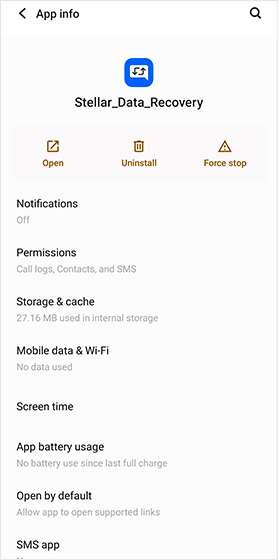
Note: The software requires installing an application on your connected Android device to scan your device. Hence, do not remove or uninstall the app unless you are finished with recovering your data.
However, if you need any further help with connecting your Android device, feel free to connect to the customer support team or raise a ticket.






