 For Individuals
 Data Recovery
 File Repair
 Data Erasure
  For Business
 Email Repair
 Email Converter
 Email Migration
 File & Database Repair
  Toolkit
 Forensic
 Lab Services
 Our Partners
 About
About Company
 Leadership
  Media Coverage
 Press Releases
 Career
  Resources
 Case Studies
 Blogs
Blogs  Articles
  Videos
  Support
 Contact us

Yes, Stellar Data Recovery Professional for Mac software can recover the custom files that you work on. However, in order to recover the specific custom files, you need to add the custom file type to the list of supported file types in the software. Check-out the below steps to add a custom file to the list and recover them.
Adding a Custom File Type in Stellar Data Recovery Professional for Mac:
- Open Stellar Data Recovery Professional for Mac.
- On the left menu, Format click on ‘Raw Files’ under the Preferences section.
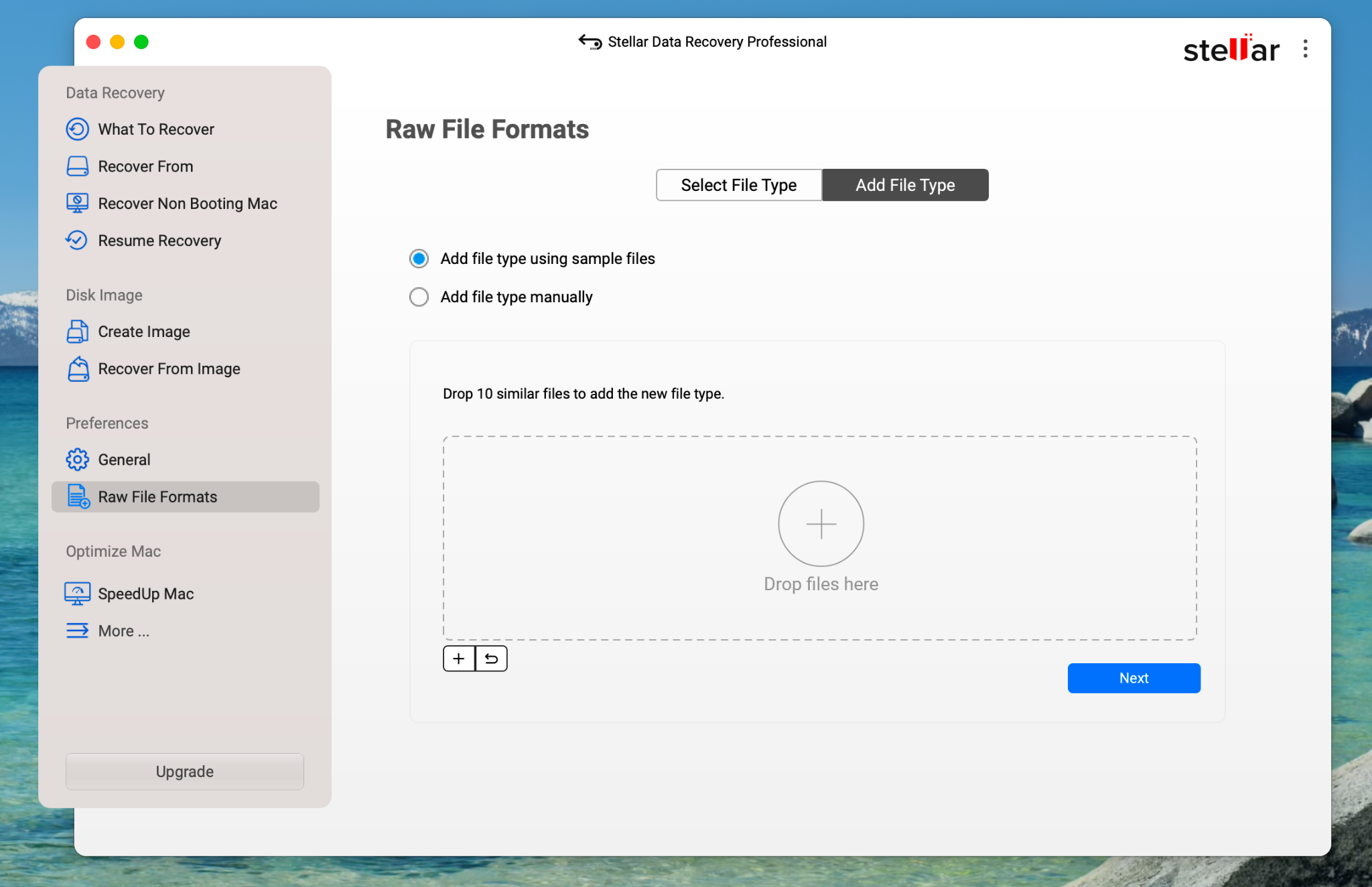
Click the ‘Add File Type’ button and select ‘Add file type using sample files’.
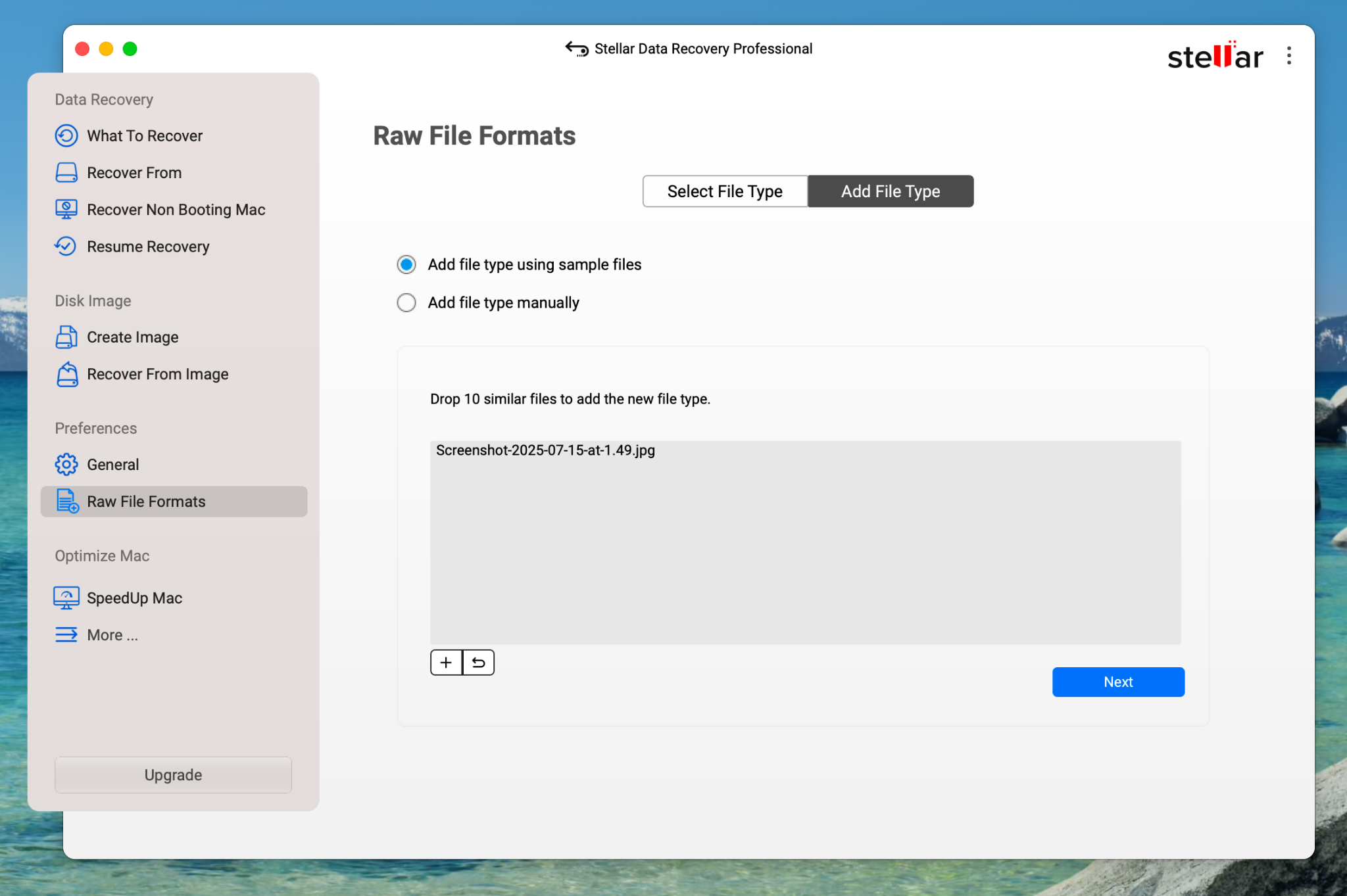
- Keep at least 10 sample files of your custom file type. You can drag and drop them to the upload area, or add them manually by clicking on the (+ Plus) sign.
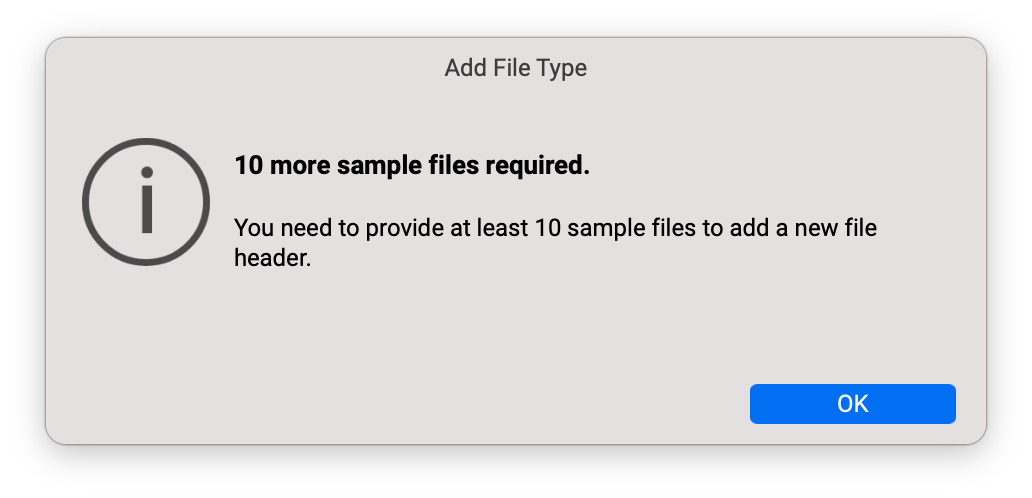
Note: If you add fewer than 10 files, the software will prompt you to add more sample files, as shown in the below message.
- Once you’ve uploaded 10 sample files, click ‘Next’. Also, you can edit your scan preference for the file types. For e.g., Minimum File Size, etc.
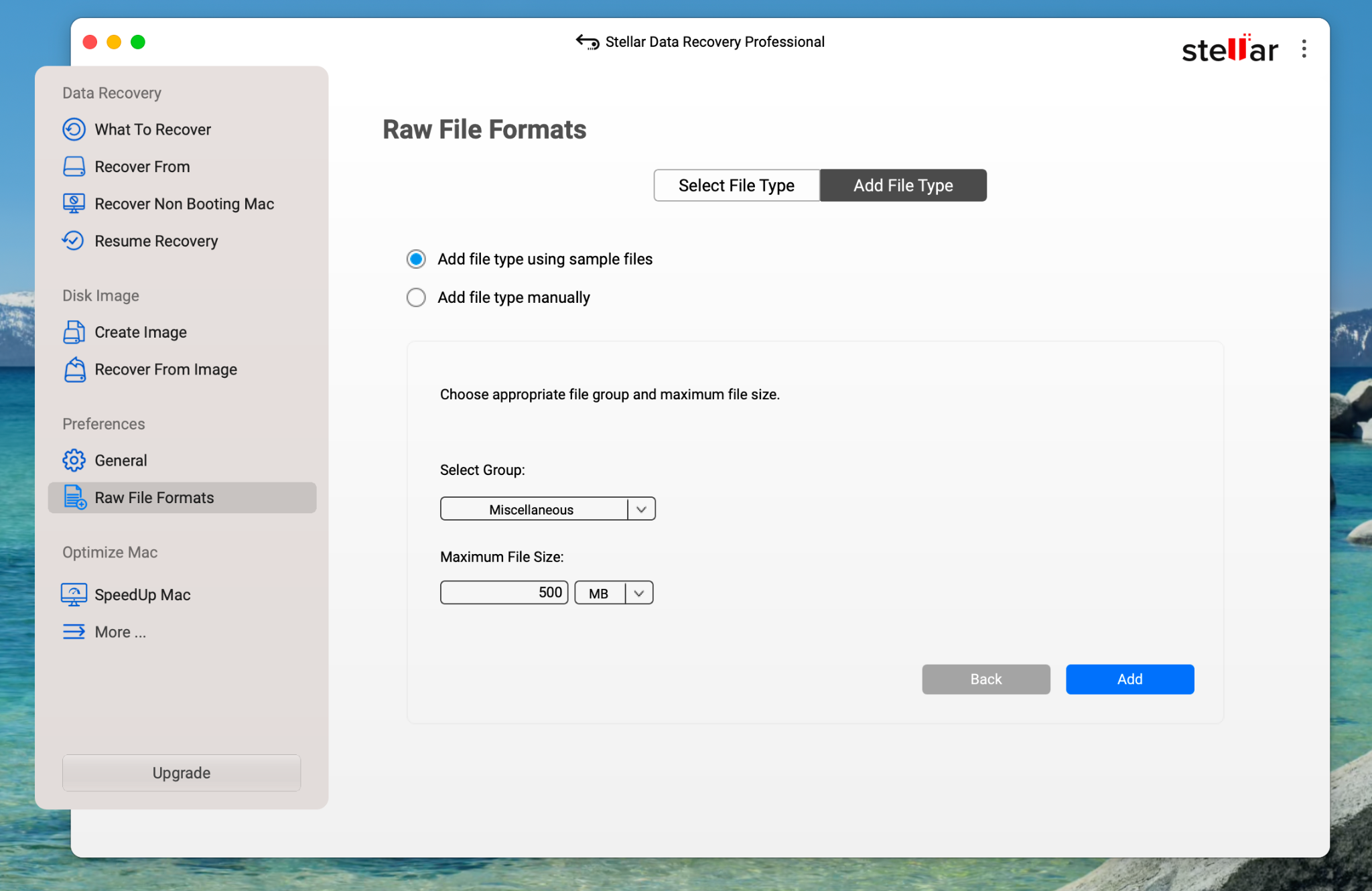
- Your new custom file type will be added to the list.
- For a filtered and more customized scan, you can deselect other file types from the list to skip scanning for them, under their relevant category.
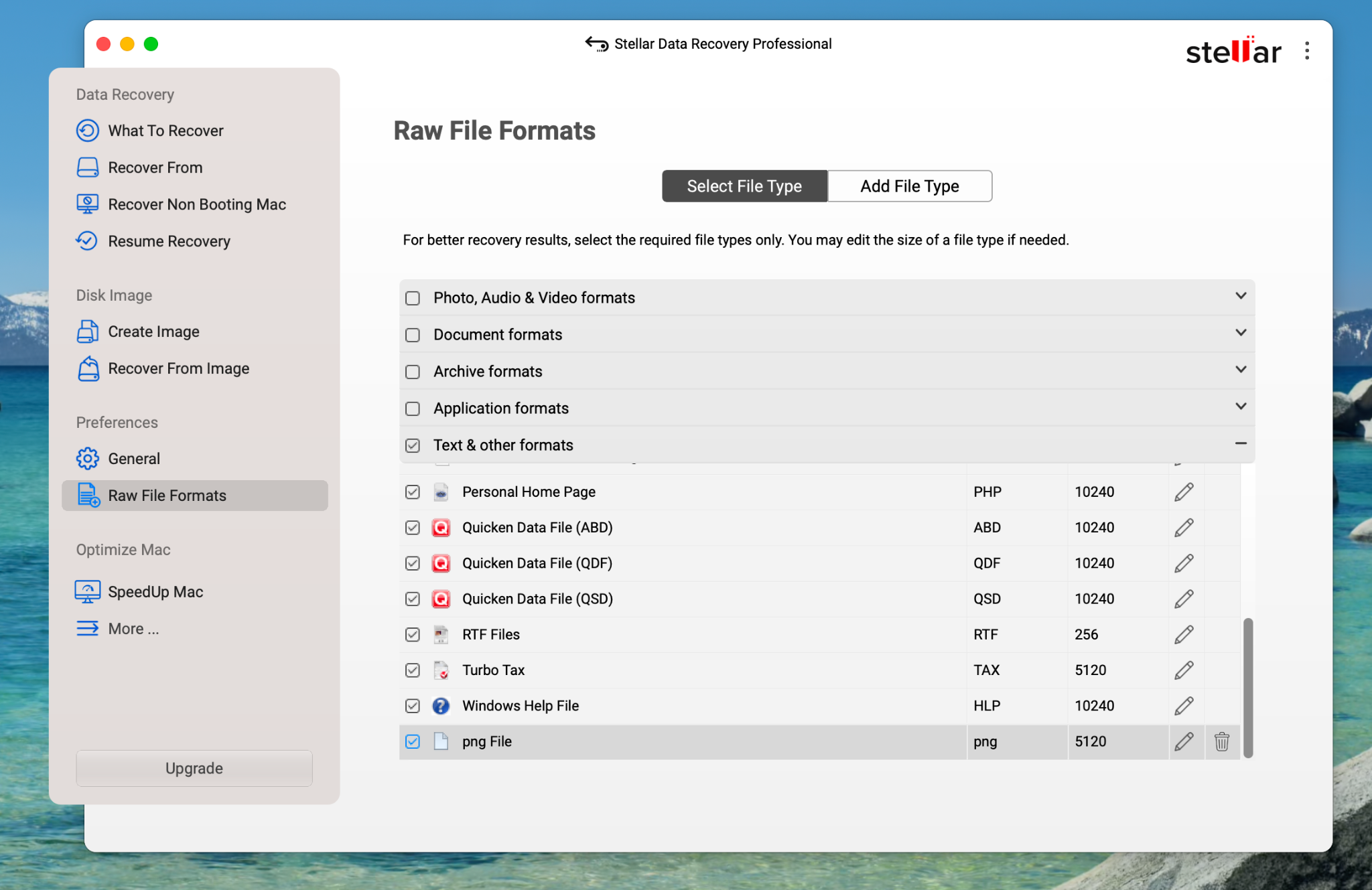
Proceed with the file recovery scan. The software will now look for your custom file type and help you recover those files instantly.






