For Individuals
 Data Recovery
 File Repair
 Data Erasure
 For Business
 Email Repair
 Email Converter
 Email Migration
 File & Database Repair
 Toolkit
 Forensic
 Lab Services
 Our Partners
 About
 Company
 Leadership
 Media Coverage
 Press Releases
 Career
 Resources
 Case Studies
 Blogs
 Articles
 Videos
 Support
 Contact us


This KB explains the process for recovering deleted game files on Mac devices by using Stellar Data Recovery Professional software for Mac. This software-based game file recovery process is valid and effective for any Mac device that has macOS Golden Gate or an earlier version installed. Use the software through the following instructions to recover deleted game files on Mac:
Stage 1: Disable System Integrity Protection (SIP) on macOS Golden Gate, Monterey, Big Sur, Catalina, Mojave, or High Sierra Start-up Disk
- Boot into Recovery Mode: Restart the Mac and press & hold Command + R keys together.
- Launch Terminal: Go to the top menu and select Utilities > Terminal.
- Run command line: Type csrutil disable on the command prompt then hit Return.
- Restart Mac: From the Apple menu, restart the Mac to complete the SIP disabling process.
Stage 2: Run the Software to Scan the Startup Drive Where the Game Files Are Installed
- Download the software on Mac (MacBook, iMac, Mac Pro/mini) running macOS Golden Gate or lower.
- Install and launch the software.
- From the main screen, click Recover Everything.
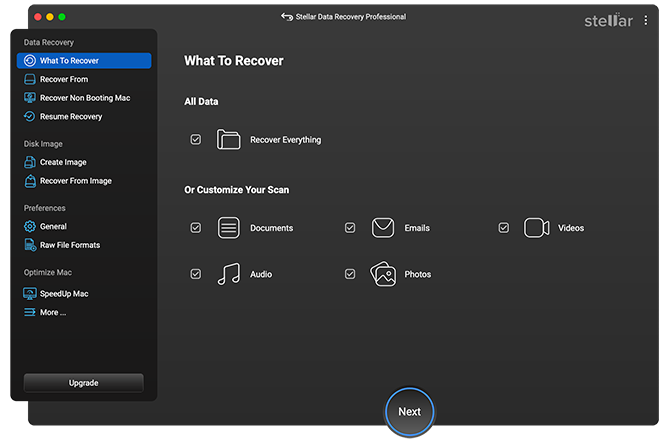
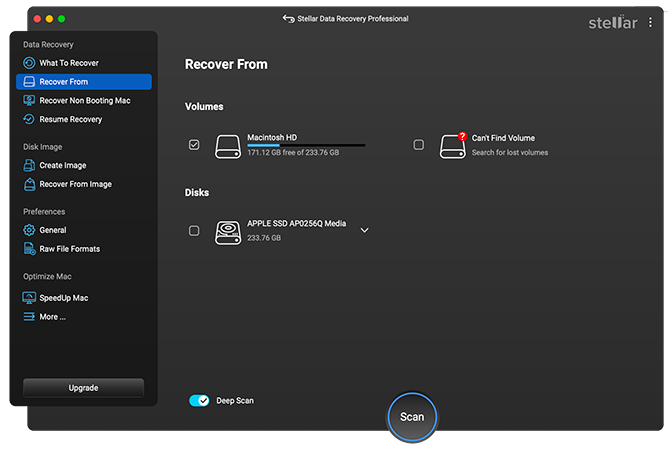
4. From the Recover From screen, click Scan after selecting the desired drive.
7. After the scan is over, you can preview and choose the required game folder.
8. Click Recover.
9. Specify the save location and click Save.
Stage 3: Re-Enable System Integrity Protection (SIP) on macOS Golden Gate, Monterey, Big Sur, Catalina, Mojave or High Sierra
- Restart Mac and press & hold Command + R keys to boot into recovery mode.
- Go to the top menu and select Utilities > Terminal to open Terminal.
- Type csrutil enable then hit Return.
- From the Apple menu, restart your Mac to complete the enabling process.