 For Individuals
 Data Recovery
 File Repair
 Data Erasure
  For Business
 Email Repair
 Email Converter
 Email Migration
 File & Database Repair
  Toolkit
 Forensic
 Lab Services
 Our Partners
 About
About Company
 Leadership
  Media Coverage
 Press Releases
 Career
  Resources
 Case Studies
 Blogs
Blogs  Articles
  Videos
  Support
 Contact us

There is often a requirement to migrate mailbox data from Exchange server to Office 365. Although there are manual methods to migrate mailboxes, they are time consuming and may result in data loss. On the other hand, if you use the Exchange to Office 365 migration process of Stellar Migrator for Exchange, you can easily perform this process.
Steps for Migrating from Exchange Server to Office 365
Here we have provided the steps to use Stellar Migrator for Exchange to migrate mailboxes and mailbox data from one Exchange server to another.
1. Download the software. If you have registered through the Stellar Migrator for Exchange website, you will receive an email containing your login credentials. This email includes a download link for the Stellar Migrator for Exchange software (EXE) and access details for the Licensing Portal (stellarlicenseserver.com). Click on the download link provided in the email, or access it directly from the Licensing Portal.

2. Install the software. Run the downloaded setup file and follow the on-screen instructions to complete the installation. Once installed, launch the software — no additional configuration is required. You can start a test migration using the 2 free mailbox credits included before creating your first migration job.

3: Welcome Screen
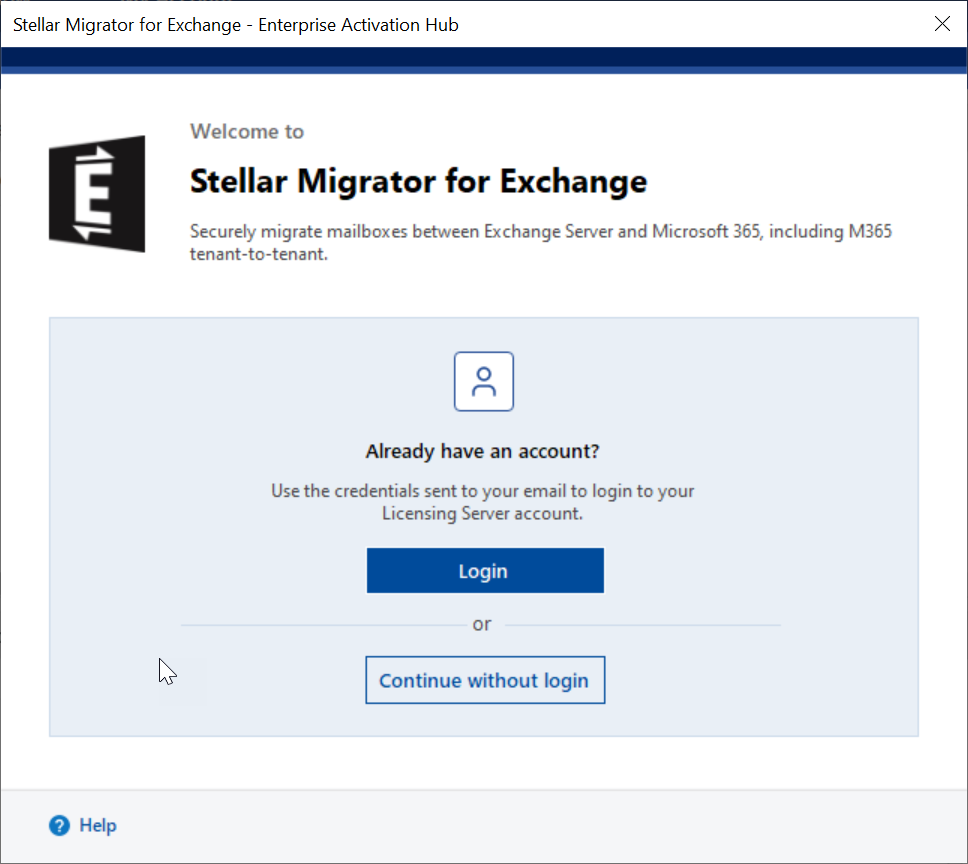
The first screen welcomes you to Stellar Migrator for Exchange, which lets you securely migrate mailboxes between Exchange Server and Microsoft 365, including M365 tenant-to-tenant. If you already have an account, click ‘Login’ to sign in with the credentials sent to your email. If you want to explore the software first, click ‘Continue without login’ instead. Use the ‘Help’ option at the bottom if you need assistance.
4. Sign In to Licensing Server
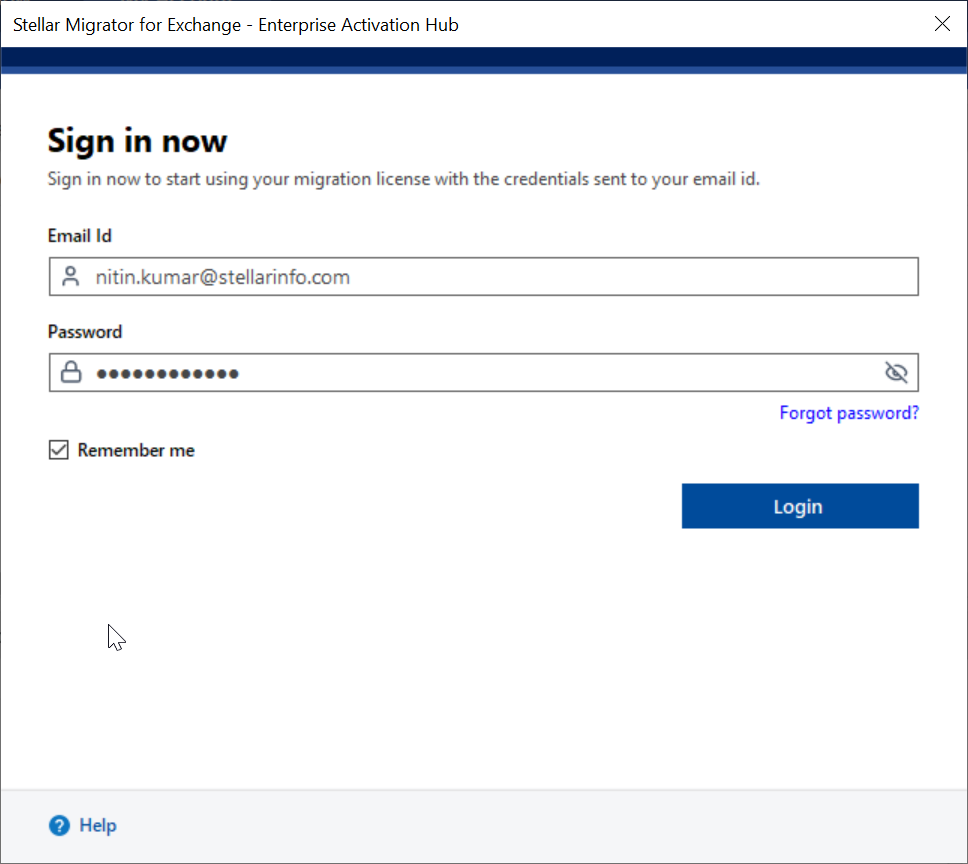
The next screen prompts you to sign in to your Licensing Server account. Enter the email ID and password sent to your registered email address, then click ‘Login’. Select ‘Remember me’ if you want the software to save your credentials for future sessions. If you cannot recall your password, use the ‘Forgot password?’ link to reset it.
5: Connected to Licensing Server
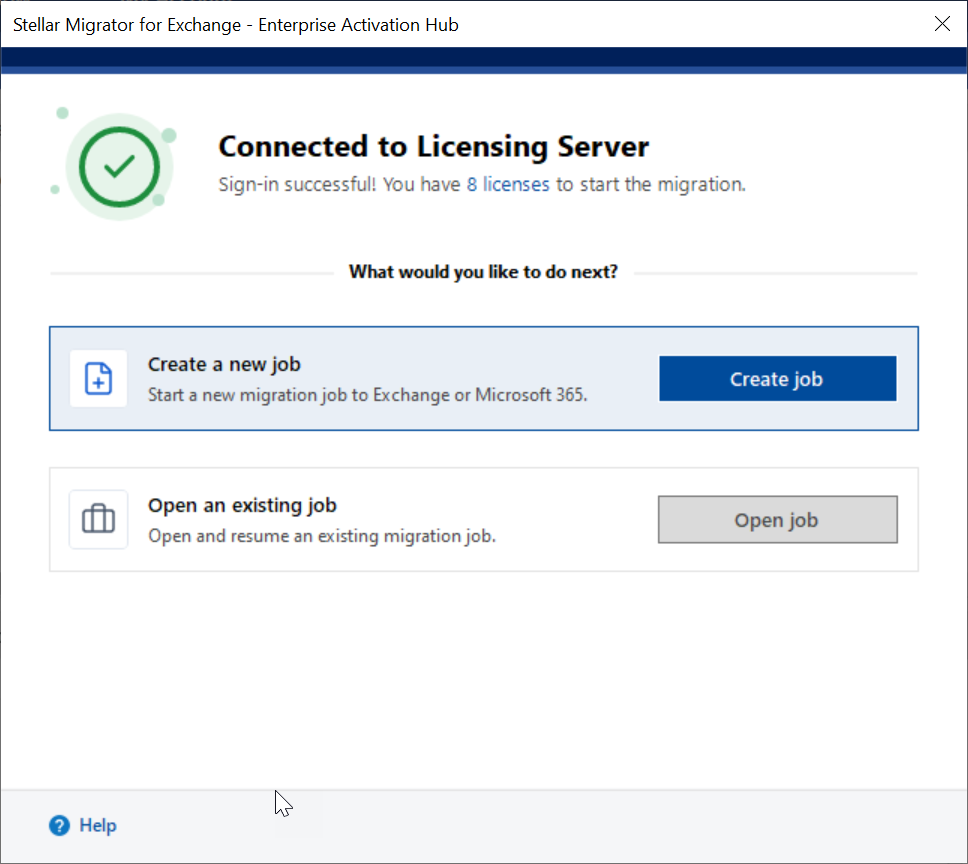
The next screen confirms that you are connected to the Licensing Server and shows the number of licenses available for migration. Click ‘Create job’ to start a new migration job to Exchange or Microsoft 365. If you have a migration job in progress, click ‘Open job’ to resume it. Review your available licenses before starting so you can plan the number of mailboxes to migrate.
6. Select the Migration Type. On the Migration Type screen:
- Under "Choose a source
server type you want to migrate from," select Exchange Server.
- Under "Choose a target
server type you want to migrate to," select Microsoft 365.
- This configures the job as an
Exchange to Exchange (server-to-server) migration. Click Next to
proceed.

7. Configure the
General settings of the job.
- Enter the Job Name (for
example, "Exc to Exc"). This name will be displayed in the list
of jobs.
- Select the mailbox type(s) you
want to migrate from the source server:
- Primary/Shared Mailboxes
- Archive Mailboxes
- Public Folders
- Optionally, import a pre-mapped
CSV file directly from this screen.
- Click Next after making
your selections.

8. Connect the source
Exchange server.
- You can check the Use
Autodiscover Email checkbox and enter only the email address and
password to establish the connection.
- Alternatively, uncheck
Autodiscover and manually enter the IP address/FQDN, email address, and
password.
- You can also click "Click
here" to reuse a previously used Source ID.
- Click Validate to
confirm the user credentials are correct, then click Next.
Note: Impersonation
rights are mandatory for the email address used to connect to the Exchange
server.

9. Review the Source
Mailboxes. This section displays
the list of mailboxes found on the source Exchange server. Review the list to
confirm all required source mailboxes are present. If you have more than 99
mailboxes, click Load Mailboxes Using CSV and upload a CSV file
containing all mailbox addresses. Once you have reviewed the list, click Next.

10. Connect the target
Microsoft 365.
- With Auto registration
selected, click 'Log in as Microsoft 365 Global admin' to be redirected to
the Microsoft 365 login window. The Auto app registration dialog will show
each action as it completes: registering the application in Azure AD,
authenticating the application, checking connection to Exchange Web
Services, and checking connection to Microsoft Graph API. Once
authenticated, the connection status will be confirmed.
- Alternatively,
select manually registration and enter the Email Address, Client ID,
Tenant ID, Secret Value.
- You can click "Click
here" to reuse a previously used Target ID.
- Click Validate to
confirm the connection, then click Next.

11. Review the Target
Mailboxes. This section displays
the list of mailboxes found on the target Exchange server. Review the list to
ensure all destination mailboxes are available for mapping. If you have more
than 100 mailboxes, click Load Mailboxes Using CSV to load the complete
list. Once you have reviewed the list, click Next.

12. Map the mailboxes. The software automatically maps source and target mailboxes by
comparing their email addresses.
- Mailboxes that are successfully
matched appear in green.
- Unmatched mailboxes are marked "Not
Mapped" in red.
- Use the Edit (…) button
to manually map any unmatched mailbox.
- The status bar at the bottom shows the Total mailboxes, Mapped count, and Not mapped count.

Once you have made all
the changes, click Next.
13. Configure the
Scheduler. Choose how the
migration job should run:
- Run manually – start the migration on demand.

- Schedule job – click the Scheduler button to set the frequency (Run once, Daily, Weekly, or Monthly), start and end times, and duration.

The description field
at the bottom previews the configured schedule. Click Next once
configured.
14. Apply the Date
Filter. This filter controls
which mail items are migrated (applies to mail items only). You can choose
from:
- Migrate All Items – migrates all mailbox data.
- Migrate items older than – migrates mailbox data older than a selected date.
- Migrate items not older than – migrates mailbox data received after a selected
date.
- Migrate items from – migrates mailbox items within a selected date range.

Once you have made
your selection, click Next.
15. Apply the Folder
Type Filter. Select the folder
types to include in the migration, such as Emails, Contacts, Calendars, Tasks,
Notes, and Journals, including special folders like Junk Email, Deleted Items,
and Drafts. All folder types are selected by default — uncheck any folder you want
to exclude from the migration.

16. Configure Max
Concurrency. Set the migration
speed and resilience options:
- Concurrent mailbox migration
threads (5 recommended)
- Concurrent item migration
threads per mailbox (5 recommended)
- Retry attempts in case of network failure (default: 2)

Note: Migration speed
depends on system configuration, network speed, and the performance of the
source and destination servers.
17. Review the
Summary. Review the complete
job summary before starting the migration. The summary displays the Job name,
mailbox types, source server, target server, total mailboxes, mapped counts for
primary/archive mailboxes and public folders, scheduler setting, date filter,
folder type filter, and concurrent mailboxes. If any setting needs correction,
click the relevant section in the left panel to go back and edit it. Once
confirmed, click Finish to create the migration job.

18. Initiate the migration. The created job will be displayed on the Job screen. Click Start in the JOB ribbon to begin the migration. The migration dashboard shows real-time Job Progress with columns for Action, Source mailbox, Target mailbox, Migration progress (%), Total items, Migrated, Filtered, Failed, and Start date. The Mailbox Progress panel at the bottom shows folder-level detail. You can Pause or Stop the migration at any time using the buttons in the JOB ribbon.

19. Migration completed. Once a mailbox completes migrating, the Action field in the job progress section changes from Migrate to Don't Migrate. If a mailbox fails to migrate, it remains in the Migrate state, allowing you to re-run the migration without repeating any configuration. The software supports incremental migration, so no duplicate data is transferred.

You can then access your target Exchange server and check if all the mailboxes have been migrated successfully.






