 For Individuals
 Data Recovery
 File Repair
 Data Erasure
  For Business
 Email Repair
 Email Converter
 Email Migration
 File & Database Repair
  Toolkit
 Forensic
 Lab Services
 Our Partners
 About
About Company
 Leadership
  Media Coverage
 Press Releases
 Career
  Resources
 Case Studies
 Blogs
Blogs  Articles
  Videos
  Support
 Contact us

When attempting to open or edit an Excel file in MS Office 2003/2007/2010/2013/2016/2019, several users have reported about receiving ‘Excel cannot open the file because the file format or file extension is not valid’ error message.
The complete error message reads as follows:
"Excel cannot open the file 'filename.xlsx' because the file format or file extension is not valid. Verify that the file has not been corrupted and that the file extension matches the format of the file."

Figure 1 - Excel File Extension not Valid Error Message
In this post, we will outline common reasons behind the error and discuss some effective solutions to resolve the .xlsx error. We will also explain how you can get your MS Excel data back.
What Causes ‘Excel File Extension not Valid’ Error?
The error may occur due to any of these reasons:
- The file is not compatible with the MS Excel version
- The Excel file is corrupt or damaged
How to Fix ‘Excel File Extension not Valid’ Error?
Try the below-mentioned methods to resolve the ‘Excel cannot open the file because the extension is not valid’ error, and regain access to the Excel worksheet:
Method 1 – Change the Default File Format to Save Excel Workbooks
MS Excel saves workbooks as XLSX or XLS file format by default. In Excel 2003 and earlier versions, files are saved as XLS. On the other hand, the files get saved in XLSX file format in Excel 2007, 2010, 2013, 2016, and 2019 versions. You may encounter the error ‘Excel file extension not valid’ due to an incompatible Excel file extension.
To resolve the issue, try changing the respective Excel version's default file format to any other file format that MS Excel supports. To do so, execute the following steps:
- In Excel 2007, click the ‘Microsoft Office’ button and then ‘Excel Options’. In Excel 2010 and higher versions, click File > Options.
- Select Export option.
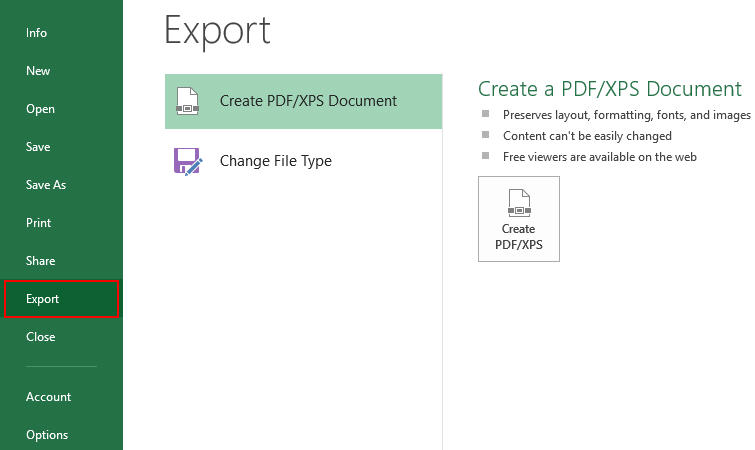
Figure 2 - Select Export Option in Excel
- Select Change File Type option.
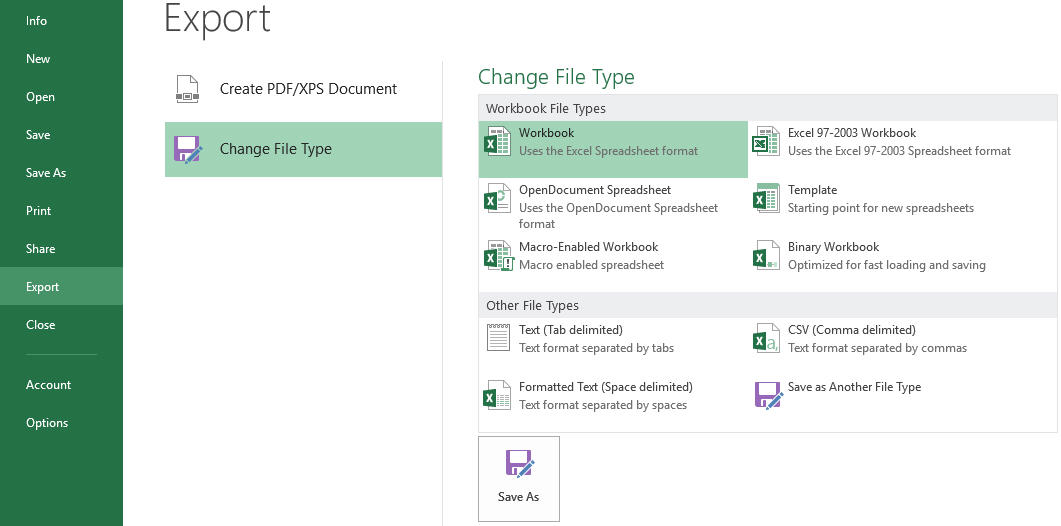
Figure 3 - Change the Excel File Type
- Change the file extension, and then click Save As.
Now check if Excel can open the file.
Method 2 – Recover Unsaved Workbook
If you encounter the ‘Excel file extension not valid error’ when trying to open an unsaved workbook, try these steps to recover the unsaved workbook:
- Go to File and select Info option.
- Under Manage Versions, select ‘Recover Unsaved Workbooks’ op
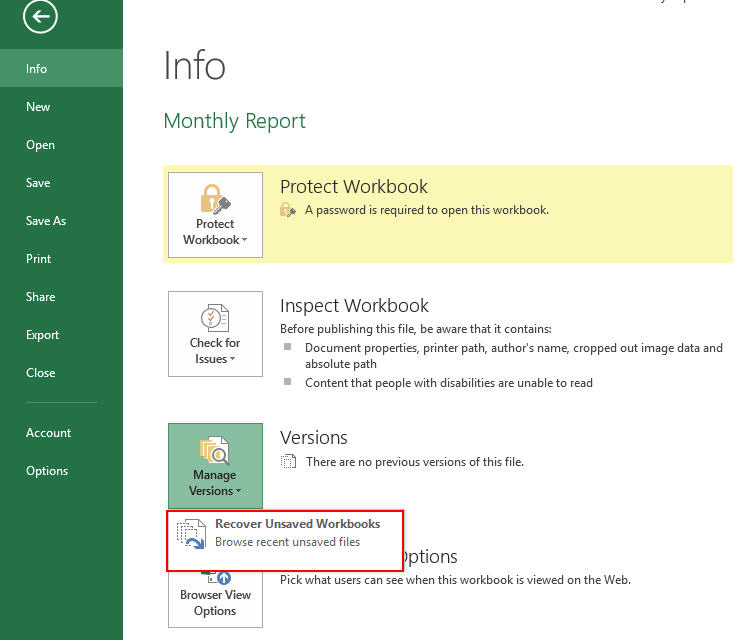
Figure 4 - Recover Unsaved Workbooks Option in Excel
- If MS Excel has unsaved files then, it will list them. You can open and save it.
C:\Users\dazy.parker\AppData\Local\Microsoft\Office\UnsavedFiles
Method 3 – Use 'Open and Repair' Feature of MS Excel
The ‘Open and Repair’ is a built-in Excel utility, designed to repair damaged Excel files. To use it, perform the following steps:
- Open MS Excel application.
- Go to File and Select Open option.
- Select the corrupt file and choose Open and Repair option.
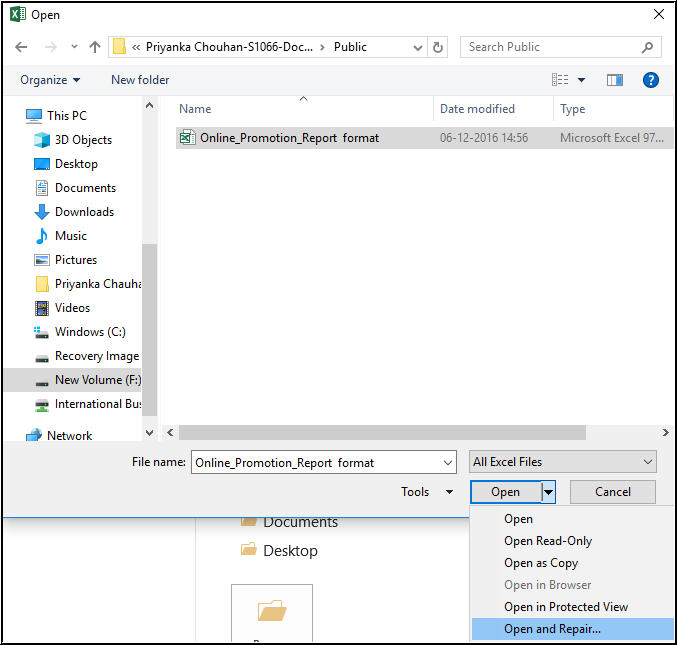
Figure 5 - Excel Open and Repair Feature
- Click Repair to start repairing the file.

Figure 6 - Repair the Microsoft Excel File
Method 4 – Use an Excel Repair Software
If the above manual methods fail to fix the “Excel cannot open the file '(filename)'.xlsx…” error, repairing the file using a specialized Excel repair software may help.
Stellar Repair for Excel software is purpose-built to repair corrupt XLS and XLSX files. The software also helps restore entire file items such as table, chart, chart sheet, image, cell comment, formula, sort, filter, etc., maintaining the original format of the MS Excel files.

Check out the video to know how to repair corrupt Excel file by using Stellar Repair for Excel:
End Note
Several manual methods, such as the ones discussed in this post, can help fix the ‘Excel cannot open the file ‘(filename)’.xlsx’ error. We recommend using the Stellar Repair for Excel software discussed above to resolve the error when other methods fail. Use the demo version of the software to ascertain its functionality by previewing the recoverable Excel data.






