 For Individuals
 Data Recovery
 File Repair
 Data Erasure
  For Business
 Email Repair
 Email Converter
 Email Migration
 File & Database Repair
  Toolkit
 Forensic
 Lab Services
 Our Partners
 About
About Company
 Leadership
  Media Coverage
 Press Releases
 Career
  Resources
 Case Studies
 Blogs
Blogs  Articles
  Videos
  Support
 Contact us

When trying to open an Excel spreadsheet in Office 2007/2010, you may come across the following error message:
"Excel found unreadable content in '[filename].xlsx'. Do you want to recover the contents of this workbook? If you trust the source of this workbook, click Yes."

On clicking ‘Yes’, any of these scenarios may occur:
- Your Excel file might open but formatting may be lost, formulas replaced with values, and other such inconsistencies can crop up.
- The error is followed by another error message. For instance, you may encounter “The file is corrupt and cannot be opened” error message.
Quick Solution: If your Excel spreadsheet contains valuable data, we recommend you to use Stellar Repair for Excel software to restore your spreadsheet to its original, intact state. The software can repair multiple .xls/.xlsx files in just three simple steps. Download the free trial version of the software from the link below to validate its efficiency.

What Causes ‘Excel Unreadable Content’ Error?
You may encounter ‘Excel file unreadable content error’ due to corruption of complete Excel file or corruption of one or more objects in the file.
Workarounds to Fix ‘Excel Unreadable Content’ Error
Following are some workarounds you can try to resolve this error:
See this: How to recover data from corrupt or damaged Excel file 2010 & 2007?
Workaround 1: Make the Excel File ‘Read-only’
Try to open your '.xlsx' file by making it 'read-only'. Follow these steps:
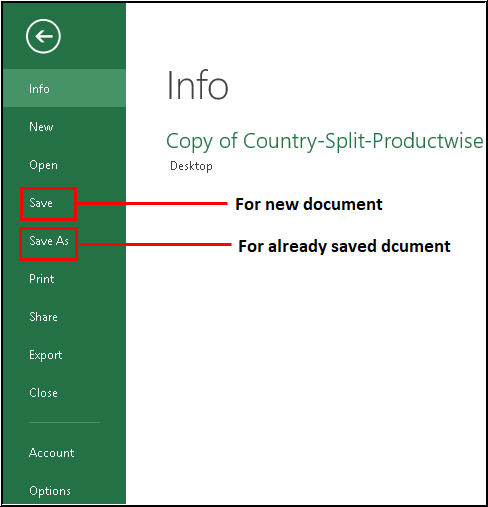
- In Excel, click File from the main menu.
- In the screen that appears, select Save for new document or Save As for previously saved document.
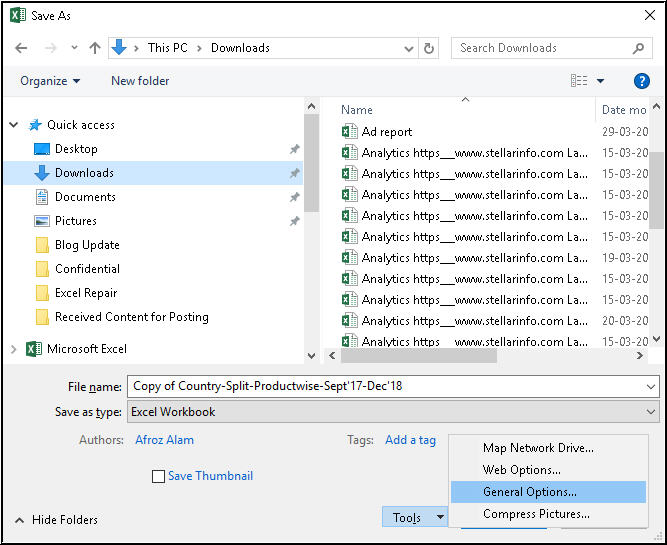
- From the ‘Save As’ dialog box, click Tools > General Options.
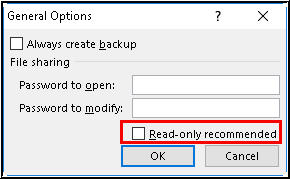
- Click on the ‘read-only’ checkbox to make the document read-only, and then click OK.
- Open a new and blank '.xlsx' file and copy everything from the corrupt Excel file to this new file. Save this file and try to open it again.
Workaround 2: Move Excel File to a New Folder
Some users have reported that they were able to open their Excel file, following the ‘Excel unreadable content’ error, by simply moving the file to a different folder.
Workaround 3: Install Visual Basic Component
At times, it is seen that installing the 'Visual Basic' component of MS Office 2010 resolves the ‘Excel found unreadable content 2010’ error message. To do so, follow these steps:
- Navigate to Control Panel > Programs > select Microsoft Office 2010.
- Click Change, and then select Add or Remove Programs.
- Next, click the 'plus' sign provided next to Office Shared Features.
- Click Visual Basic for Applications. After that, right-click and choose Run from My Computer, and hit the Continue button.
- Reboot your system when this process finishes.
-
Now check if the issue has been resolved or not.
What Next?
If none of the above-mentioned workarounds work for you, using professional Excel repair software such as Stellar Repair for Excel can come in handy. The software repairs corrupt MS Excel sheets without modifying their original content and formatting. It can repair single or multiple Excel (XLS/XLSX) files in a few simple steps.
Steps to Repair Corrupt Excel File with Stellar Repair for Excel Software
- Install and run Stellar Repair for Excel software.
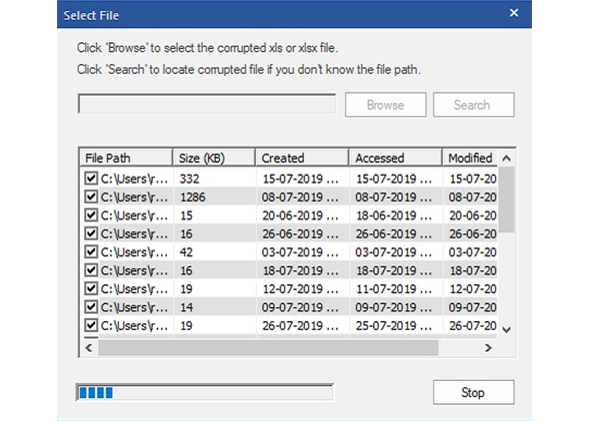
- From the software main interface window, click Browse to select the corrupt file. If you are not aware of the corrupt Excel file location, click on the Search button.
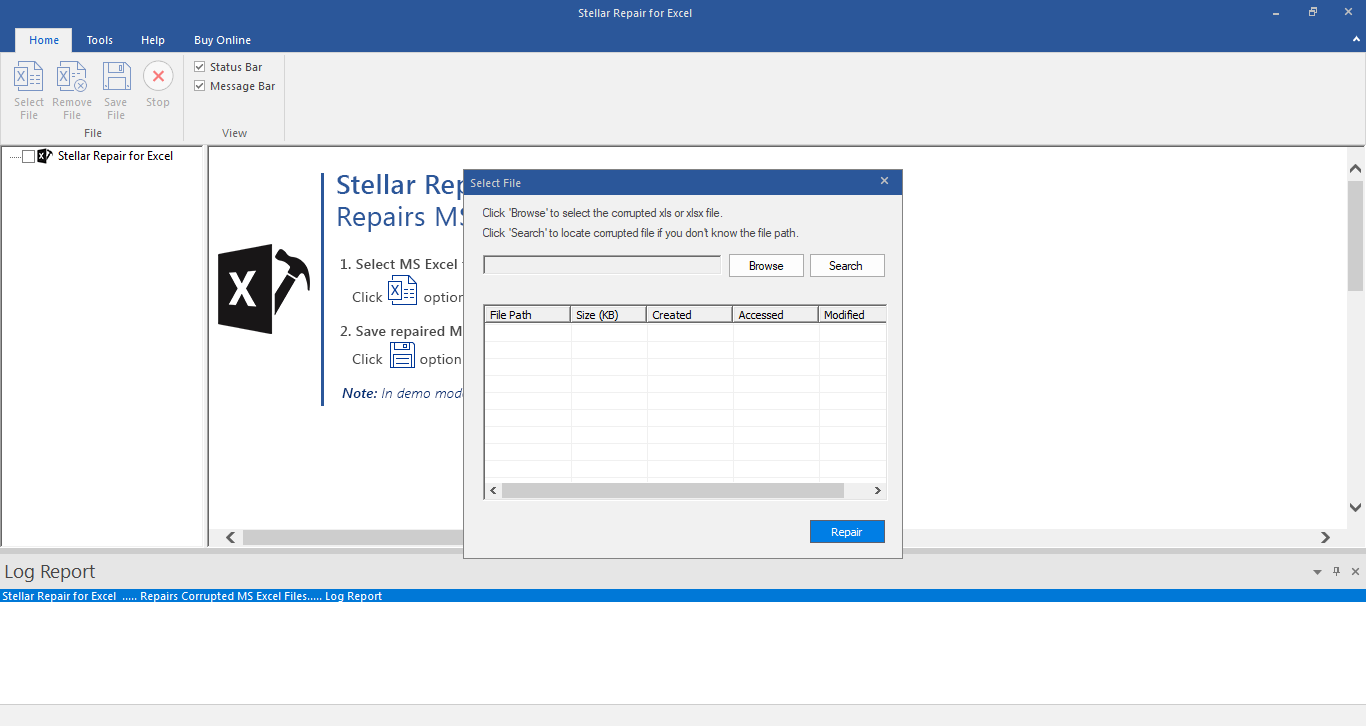
- Click on the Repair button to scan and repair the selected file.
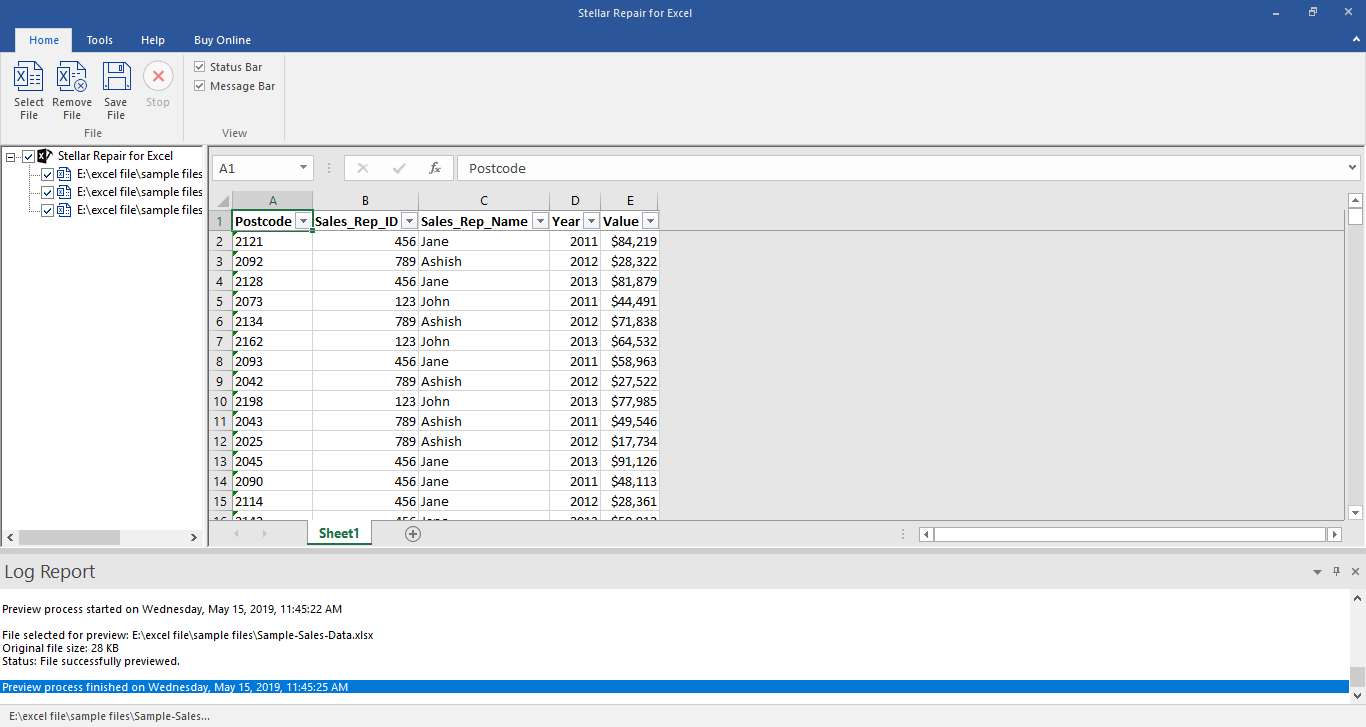
- A preview window will open with recoverable Excel file data. Once satisfied with the preview result, click on the Save File button on File menu to start repair process.
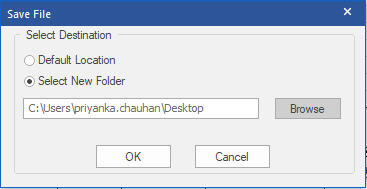
- Select the destination to save the file.
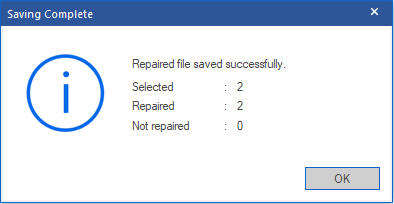
- Click OK when the ‘Repaired file saved successfully’ message appears.
- The repaired Excel file will get saved at the selected location.






